Feature list

Everything it does.

One extension, one job — but the disguise goes further than a coat of paint. Every screenshot below is the real extension, not a drawing of it.

Free 10-minute trial · No card required · Works in Chrome and Edge

claude.ai/chat/a1b2c3
You Draft a polite reply to the landlord about the broken heater.
Claude Here's a draft you can send: “Hi Sam, following up on the heater in unit 4B — it's been out since Monday and the cold nights are…”

Flip the switch — that's the whole product.

On the page

What claude.ai turns into once the disguise is on.

01

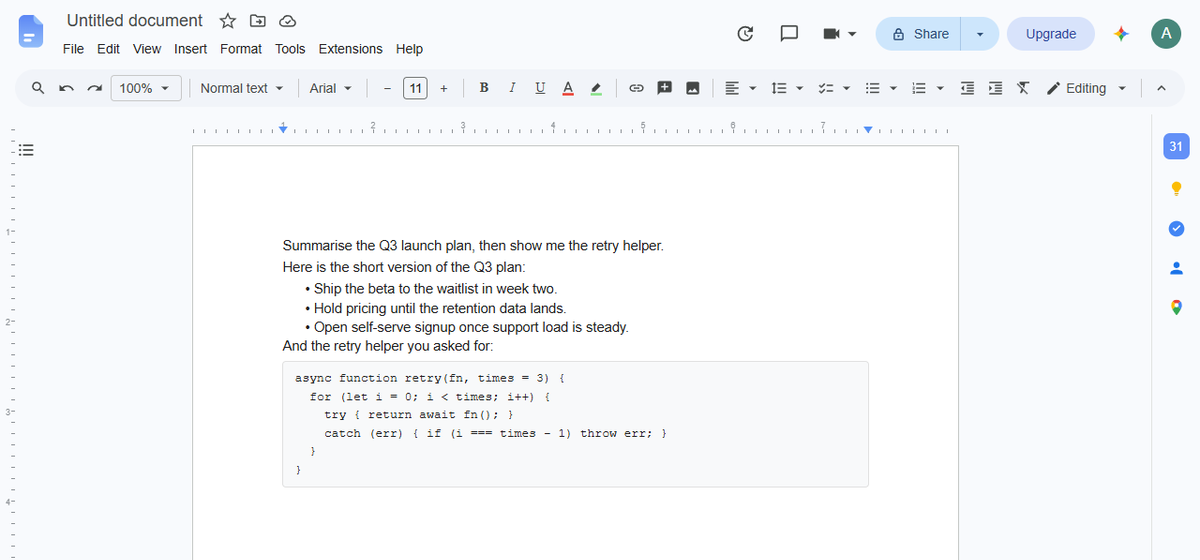
Your chat, rendered as a document

Title bar, menu row, toolbar, ruler, page and a blinking cursor — the chat interface is replaced end to end, not tinted. The conversation underneath keeps working exactly as it did.

The disguised page: a document titled Untitled document with a menu row, formatting toolbar, ruler and a white page holding the conversation as plain text.
Live capture of the packed extension.
02

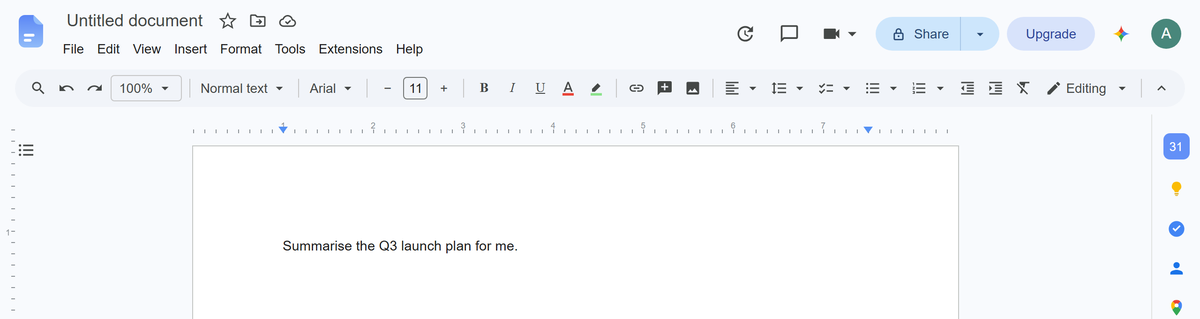
You type in the document

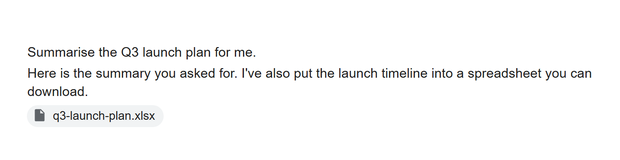
Click anywhere on the page and type on the cursor line, like any document. Enter sends it to Claude; Shift+Enter gives you a new line instead. There is no chat box on screen at any point.

A sentence being typed straight onto the document page: “Summarise the Q3 launch plan for me.”
Typing into the disguised page.
03

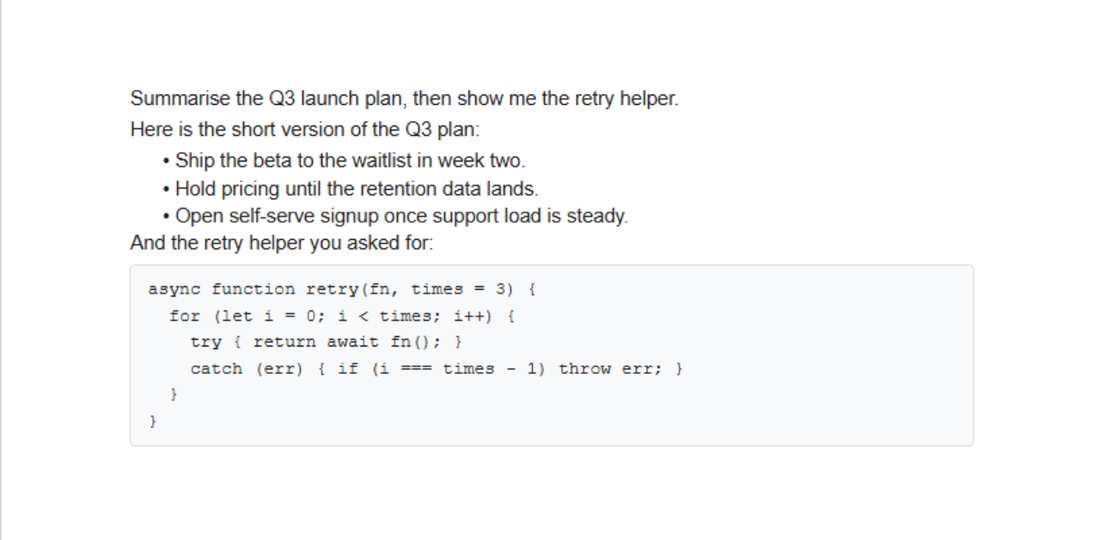
Replies arrive as body text

Claude's answer types itself onto the page as ordinary document text. Paragraphs, bullet lists and code blocks all keep their shape — nothing renders as a chat bubble.

A reply on the page as document text: a paragraph, three bullet points, and a monospaced code block in a grey panel.
Live capture — lists and code blocks intact.
04

Attach files the normal way

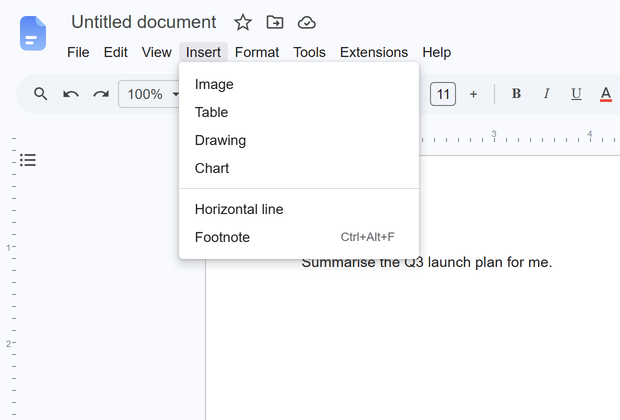
Four routes open your real file picker: Insert → Image, the image button in the toolbar, the + at the bottom of the right-hand icon strip, or the + in the side panel. Whatever you pick goes with your next message.

Dragging a file onto the page does not upload it — use one of those four controls.

The Insert menu open on the disguised page, listing Image, Table, Drawing, Chart, Horizontal line and Footnote.
Insert → Image opens your real file picker.
05

See what's attached

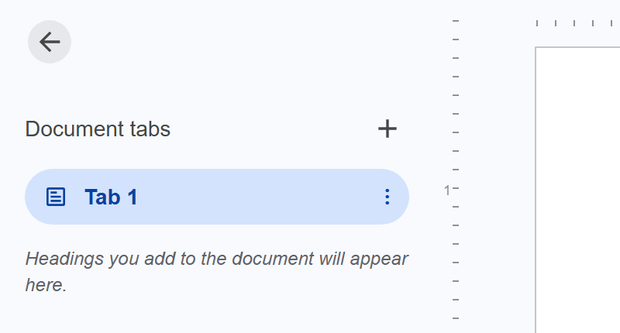
Open the side panel with the outline button at the top-left of the page area. Files you've attached are listed there as document tabs underneath “Tab 1”. The arrow at its top closes the panel again.

The side panel open, showing a “Document tabs” heading, a plus button, and a highlighted “Tab 1” entry.
The side panel, where attachments appear.
06

Name it whatever you like

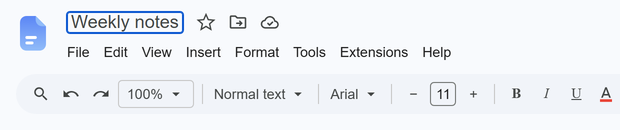
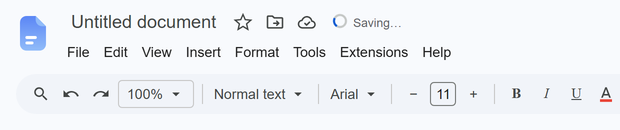
Click the document name at the top, type, and press Enter. Your browser tab title changes to match, so the tab strip gives nothing away either. Leave it empty to go back to the default.

The document title being edited in place, reading “Weekly notes” inside an active text field.
Renaming the document.
07

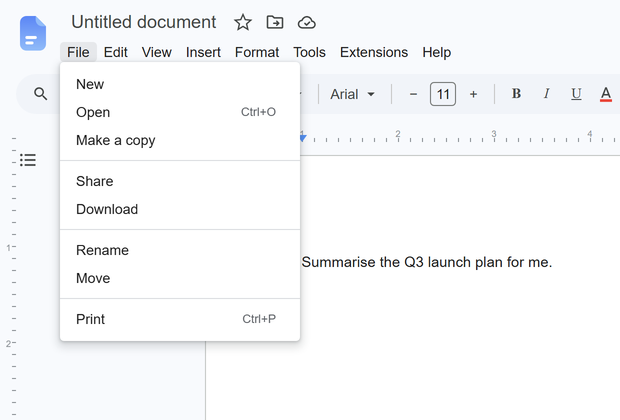
The menus actually open

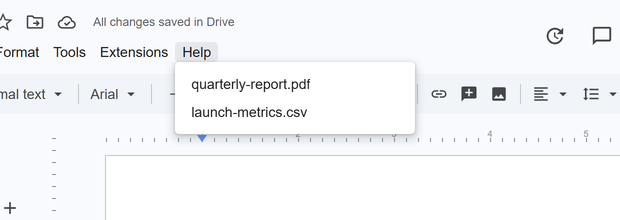
File, Edit, View, Insert, Format, Tools, Extensions and Help are all live. Click any of them and the dropdown opens with the items and keyboard shortcuts you'd expect — so the page holds up to more than a glance.

The File menu open on the disguised page, showing New, Open, Make a copy, Share, Download, Rename, Move and Print with their shortcuts.
Every menu in the row opens.
08

One click out

Click the document icon in the very top-left corner — the one in every screenshot above — and the tab goes straight to a real documents home page. One click, no chat left on screen, nothing to close.

The toggle and your account

How you turn it on, and what comes with the licence.

09

One toggle, nothing else

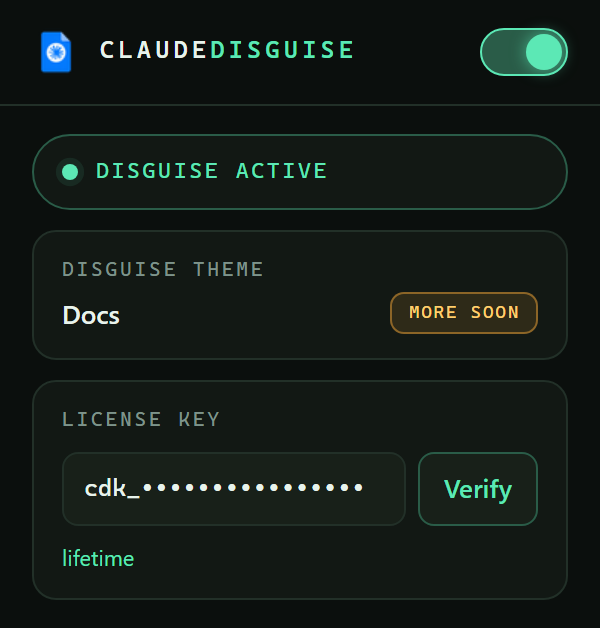
Click the ClaudeDisguise icon in your toolbar and flip the switch. On or off takes effect instantly, without reloading the page.

Turning it off restores the normal interface. The chat underneath is hidden, never closed — your place in the conversation and anything half-typed are still there when you toggle back.

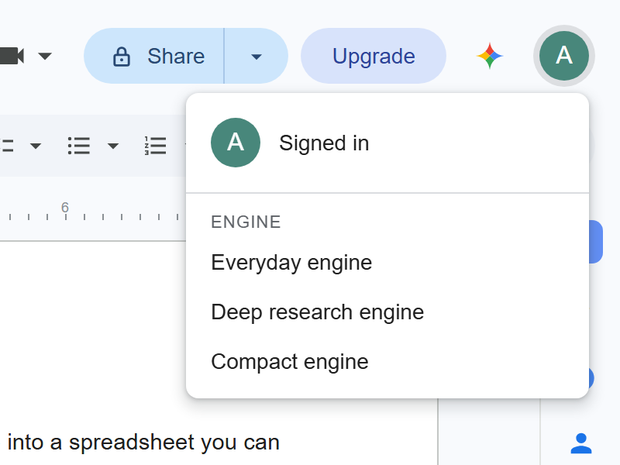
The extension popup: a ClaudeDisguise header with an on switch, a “Disguise active” status row, the Docs theme, and a masked licence key with a Verify button.
The extension popup, as it ships.

Also included

  • Chrome and Microsoft Edge — one extension from the Chrome Web Store, no separate builds
  • Your existing chats, projects and history stay exactly where they are; only the look changes
  • A licence key tied to your account, active on one device at a time, resettable from your dashboard whenever you want
  • Nothing leaves your browser — the extension makes exactly one outbound request, to check your licence key. Message text is read from the page you're already looking at, drawn on screen, and written nowhere else
  • No analytics, no telemetry, no third-party SDKs, and no access to any tab other than claude.ai
  • All theme updates while your plan is active — lifetime keeps them forever

What it doesn't do

The disguise is a visual layer. Worth knowing before you rely on it.

Try the whole thing.

Every account starts with a free 10-minute trial. No card required.

Start your free trial